Setup guide
Setting up Bakersline,
from nothing to your first reply
The whole path, in order, with nothing skipped. You'll sign in on Meta's own pages — Bakersline never sees your Instagram or WhatsApp password, and you can disconnect either account at any time without losing anything.
Realistically this is one evening, and most of that is Meta's verification rather than anything on our side. You can stop after any part and pick it up later; nothing breaks half-finished.
About an hour of your attention, spread over an eveningThe order it goes in
- Part one — create your bakery (2 min)
- Part two — teach it your bakery: prices, menu, lead times, voice (20 min, or 5 if you import)
- Part three — connect Instagram (10 min)
- Part four — connect WhatsApp (15 min)
- Part five — your first approval, and going live (10 min)
- Part six — the rest: recipes, expenses, team, reports (whenever)
Before you start
- Your Instagram account must be a professional account — Business or Creator. A personal account cannot receive business messages through any tool, including this one.
- For WhatsApp: a phone you can hold, because Meta asks you to confirm on the handset.
- You must be the person who owns or manages these accounts.
Part one
Create your bakery
Two minutes, and nothing here is permanent — you can change all of it later.
-
Sign up
Go to app.bakersline.co.uk and create an account with your email. No card, and nothing to cancel if you walk away.
-
Name your bakery
The name your customers know you by — it appears on your workspace and in your replies. Pick a brand colour while you're there; it marks your logo badge, and you can let it colour the whole app later if you want.
-
Set your name
Your own name, not the bakery's. It's recorded beside every reply you approve, so a team of two always knows who sent what.
What this creates A private workspace that only people you invite can read. No other bakery on Bakersline can see anything inside it — that's enforced on every single database read, not by a setting.
Part two
Teach it your bakery
This is the part that decides whether the drafts sound like you or like software. It's also the part most tools get wrong, by handing you a blank form and asking you to describe your own pricing in the abstract.
There are two ways in. The second one is faster and most bakers should take it.
Fill it in yourself
A guided wizard, one topic at a time. Free, always.
- Your rate per kilo and minimum order
- Designing charges and delivery
- Lead time, days off, how much you can make in a day
- Your menu: sponges, fillings, icings
- Two or three replies you'd actually send, so it learns your voice
About twenty minutes, and you can do it in pieces.
Let it read your history
You've already answered these questions — hundreds of times, in your own DMs.
- Choose how far back to read: three months, six, or everything
- It works out your prices, lead times, menu and voice
- Every single figure is shown with the messages it came from
- You tick what's right and correct what isn't
About five minutes of your time. This is a paid one-off, because it's real work each time — and you never have to take it.
-
Build your catalogue
Settings → What you offer. Each product — cakes, cupcakes, cookies — with its own price basis and its own choices. A cake is priced per kilo and picked in three steps; a dozen cupcakes is neither, which is why they don't share one list.
Decide per product whether the price is one a customer may be told. Most bakers publish a cupcake price and keep custom tiers as "quoted per enquiry" — you can have both.
The boundary this draws The assistant may only offer what's on this list. Ask it for a lemon drizzle you don't make and it won't invent one — it hands the question back to you. -
Upload the cards you already send
If you answer "what flavours do you have?" by sending a picture, upload that picture here. The assistant can then propose attaching it, and it goes out with your reply when you approve — one tap instead of digging through your camera roll.
These images are fetched by Instagram to deliver them, so they're readable by anyone with the link. Upload only what you'd happily send a stranger.
-
Set your capacity honestly
Minimum lead time, the weekdays you don't work, and how many orders or kilos you can genuinely do in a day. This is what lets a draft say no to a Saturday that's already full — which keeps a customer instead of losing them to a promise you'd have to break.
-
Read one draft before you connect anything
Once the brief has prices in it, the assistant has enough to work with. You'll see for yourself in Part five.
Part three
Connect Instagram
Most cake enquiries start here — a DM with a photo attached. This connects your business inbox so those messages appear in Bakersline within a second or two of arriving.
-
Make sure your account is professional
In the Instagram app: your profile → the menu (☰) → Settings and privacy → Account type and tools. If it offers "Switch to professional account", tap it and choose Business. If it already says "Switch to personal account", you're professional — nothing to do.
-
Allow tools to reach your messages
Still in Instagram: Settings and privacy → Messages and story replies. Look for a setting about allowing access to messages, sometimes called Connected tools. Turn it on.
Instagram moves and renames this one, and on some accounts it doesn't appear at all — in which case skip it. If messages don't arrive after connecting, this is the first place to come back to.
Illustration · the path through Instagram's menusDrawn, not captured. Instagram renames these screens fairly often — follow the words, not the pixels. If a label here doesn't exist on your phone, search Settings for "connected tools". -
Open Bakersline and start the connection
Go to Settings → Channels and press Connect next to Instagram. A window opens on Instagram's own site.
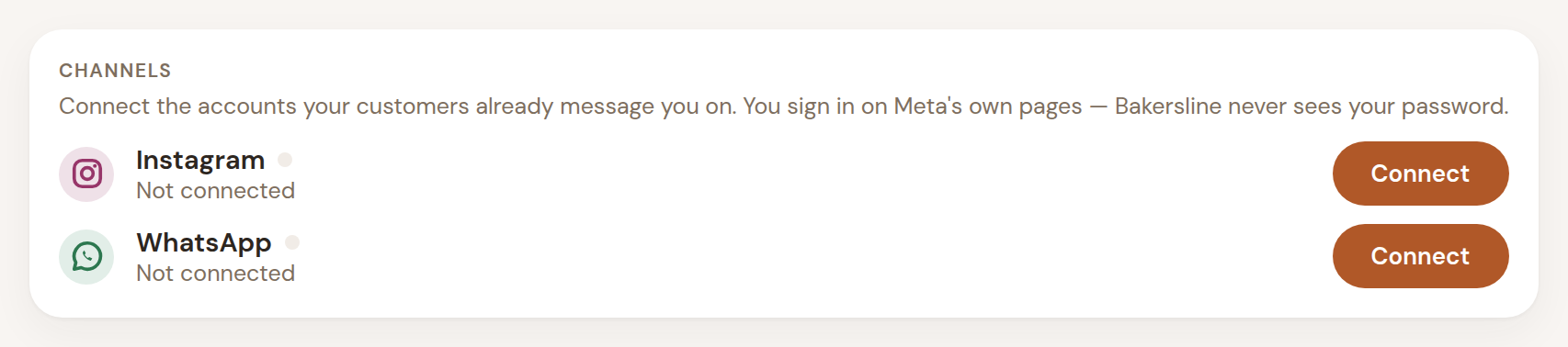
Bakersline · Settings → Channels before you start. A grey dot means not connected. -
Sign in on Instagram's page and approve
You're signing in to Instagram, not to Bakersline. Instagram then lists the two things Bakersline is asking for, and you approve them.
Illustration · what Instagram asks you to approve- ✓Read the messages people send your business account
- ✓Send replies you have approved
- ✓See your business profile
- ✕Post to your feed, stories or reels
- ✕See or use your follower list
- ✕Touch your personal Instagram account
- ✕Know your password — you never type it here
Two permissions, and that's the whole list. Each one is scrutinised by Meta during app review, which is a good reason for us to ask for as little as possible. -
Check it worked
The window closes and the card turns green with your handle on it. Send your business account a DM from another phone: it should appear in Inbox within a second or two, with a drafted reply waiting in Queue.
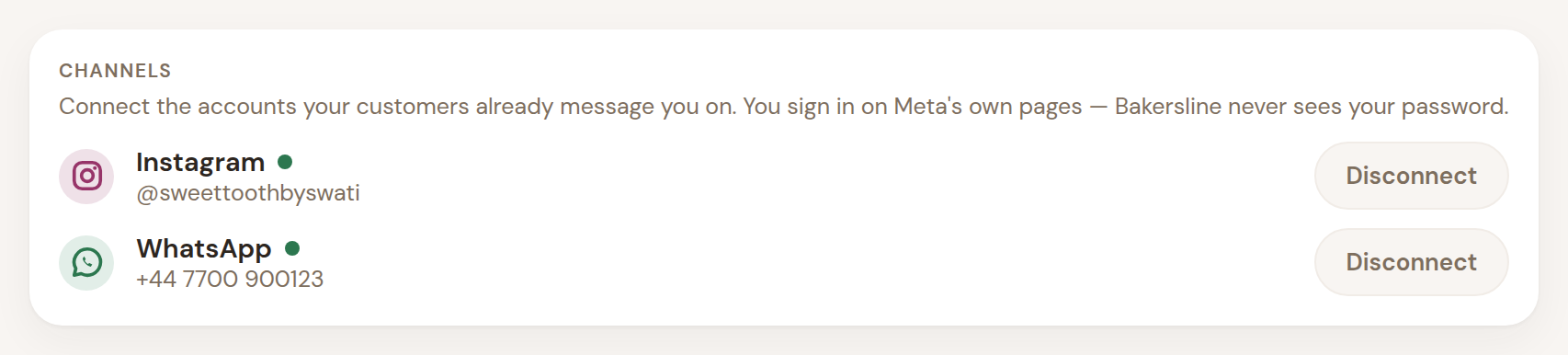
Connected. Green dot, your handle, and the button becomes Disconnect — one tap, any time, and messages stop arriving. Your orders and history stay exactly as they are.
Part four
Connect WhatsApp
WhatsApp works differently from Instagram, and it's worth understanding why before you start. A phone number can be used by the WhatsApp app on a handset, or by the WhatsApp Business Platform that tools like Bakersline connect to. There are two ways to handle that, and the right one depends on whether you want to keep answering from your phone.
Your existing business number
Meta's coexistence setup lets one number run in the WhatsApp Business app and in Bakersline at the same time. You keep answering from your phone; those replies appear in Bakersline too, and vice versa.
- Your number must be on the WhatsApp Business app, not personal WhatsApp
- Up to six months of past chats come across during setup
- Open the app at least once a fortnight to keep it in sync
- Broadcast lists, disappearing messages, view-once and live location stop working in one-to-one chats; group chats stay on your phone only
A new number, used only here
A SIM that has never been registered on WhatsApp becomes your Bakersline number. Your personal WhatsApp is untouched.
- The number can never be used in the WhatsApp app afterwards
- It starts with no history and no existing customers
- Put it in your Instagram bio and link-in-bio so people find it
- Cleanest option if you share your personal number with family
-
Decide which number you're using
If you're keeping your phone, use the number already in your WhatsApp Business app. If you're starting fresh, get the new SIM active first and don't install WhatsApp on it.
-
Start the connection in Bakersline
Settings → Channels → Connect next to WhatsApp. A window opens on Meta's site.
-
Follow Meta's steps
Meta will ask you to sign in with the account that manages your business, then either confirm the number on your handset (Option A) or register the new number with a code sent by SMS or voice call (Option B).
You'll also set the display name customers see. Use your real bakery name — Meta reviews it, and an invented name gets rejected.
Illustration · the three steps inside Meta's window01Your business
Sign in and pick the business this number belongs to, or create one. Meta calls this a WhatsApp Business Account.
02Your number
Choose the number. Coexistence lets you pick one already on the WhatsApp Business app — that's the option that keeps your phone working.
03Verify it
Confirm on the handset, or take a code by SMS or voice call. Then set the display name your customers will see.
Drawn, not captured. Meta runs these steps in its own window and changes the wording periodically. The order rarely moves; the labels sometimes do. What you're approving Receive the messages customers send this number · Send replies you have approved. Bakersline can't read your personal WhatsApp, and can't message anyone who hasn't messaged you first. -
Check it worked
The Channels card looks like the Instagram one above: green dot, your number, and a Disconnect button. Message it from another phone — it should land in Inbox with a draft in Queue. On coexistence, answer once from your own phone too: that reply should appear in the Bakersline thread, and the draft should disappear from the queue.
Part five
Your first approval, and going live
-
Send yourself a message
From another phone, message your own business account on Instagram — something a real customer would send. "Hi, do you do a two-tier for 30 people on the 14th? How much?"
-
Watch it land in the queue
Within a few seconds it appears as a card: what was asked, what Bakersline wrote back, and how long is left to reply. One card per person, always.
-
Read the draft properly
Is the price right? Does it sound like you? Would you have said that? This is the moment to go back and fix the brief, not three weeks in.
Normal Most bakers edit a lot in week one and almost nothing by week three. Every edit you make is a signal about how you write — the brief is worth revisiting after a few days of real enquiries. -
Approve it
Tap approve. That's the only moment anything reaches a customer, and it's recorded against your name.
-
Turn on desktop alerts
Account → Notifications. The bell always counts what's waiting; alerts pop up even when Bakersline isn't the tab you're looking at, which matters because Instagram closes the door on replying 24 hours after a customer's last message.
Going-live checklist
- Prices in the brief — rate per kilo, minimum, designing, delivery.
- Lead time and days off set — so it can decline a date honestly.
- Menu filled in — sponges, fillings, icings.
- At least one channel connected and a test message answered.
- Desktop alerts on, or the bell checked at least twice a day.
- Two-factor on your own email account — it's the key to everything else.
Part six
The rest, whenever you're ready
None of this is needed to start answering enquiries. Add it when you want the answer to a question you're currently guessing at.
| Your team | Settings → Team → invite. They get their own sign-in and see the same workspace; every reply they approve is recorded against their name. Removing someone is one tap and immediate. |
|---|---|
| Orders and the calendar | Create an order straight from a conversation — the date, size, tiers and quoted price are already filled in. The calendar shows what's due today, this week and what's slipped past. |
| Clients | Notes per customer: allergies, the topper text, the name they actually go by. Add a birthday or anniversary and you'll be reminded before they have to remind you. |
| Recipes & costs | Enter what a pack costs and how big it is, once. Write your recipes in the quantities you already use. Cost per batch and per kilo appear, and your real margin against the rate you charge. |
| Expenses | Four fields: amount, category, note, date. This is what turns Reports from "what you earned" into "what you kept". |
| Reports | Booked against collected, month by month; what you kept; who your best clients are; and which orders still owe you money, worst first. |
| Look & feel | Six themes, light and dark, and your own brand colour if you want it. Warning colours never change — red still means a button destroys something. |
| Your data | Account → Your data. Download the whole bakery as one file, or delete it permanently. Both are buttons; neither needs us. |
Straight answers
What Bakersline can and can't do
| Question | Answer |
|---|---|
| Does Bakersline see my password? | No. You sign in on Instagram's and Meta's own pages. We receive a permission token, never your password, and it's stored where no browser or app can read it. |
| Can it message a customer without me? | No. Every reply waits until a person on your account approves it. There is one path from Bakersline to a customer and it opens when you tap send. |
| Can it read my personal Instagram or WhatsApp? | No. Only the business account you connected, and only the conversations customers start with you. |
| Can it post to my feed or story? | No. We don't ask for that permission, so it isn't possible. |
| Can another bakery on Bakersline see my chats or prices? | No. Each bakery is a sealed workspace. Nothing crosses between them. |
| What happens if I disconnect? | New messages stop arriving. Your orders, clients and past conversations stay in Bakersline, and you can reconnect whenever you like. |
If something doesn't work
The four things that usually go wrong
It says connected, but no messages arrive
Nine times out of ten this is the Instagram setting in step 2 — the one about allowing tools to reach your messages. Check that first. Also make sure you're messaging the business account from a different account, not from itself.
Instagram won't let me connect
Almost always a personal account that hasn't been switched to professional yet, or being signed in to a different Instagram account in that browser. Sign out of Instagram in your browser, then try again.
WhatsApp says my number isn't eligible
The number is already registered on WhatsApp and you've chosen Option B. Either delete the WhatsApp account on that number first, or use a different number — or switch to Option A and keep your phone.
The assistant won't quote a price
That's deliberate, not a fault. Until you've set your rate in Assistant, the assistant is told it has no pricing authority, so it collects the date, guest count and a reference image and says you'll confirm. Fill in the rate and it starts quoting with the working shown.
Still stuck?
Write to us and we'll walk you through it.
We're onboarding bakeries one at a time, so a real person will answer.
support@bakersline.co.uk